
Download O&O ShutUp10++ Free for Windows
Take control of your Windows privacy. Disable telemetry, tracking, and data collection with one portable tool no installation required. Trusted by millions worldwide.
What Is O&O ShutUp10++?
A free, portable antispy tool that gives you full control over Windows privacy settings
O&O ShutUp10++ is a free privacy tool for Windows 10 and Windows 11 that lets you control exactly what data your operating system collects and shares. Built by O&O Software GmbH a Berlin-based company founded in 1997 and a Microsoft Certified Partner since 2003 this portable application provides a single dashboard where you can review, disable, or fine-tune dozens of telemetry, tracking, and data-sharing settings that Windows enables by default. The O&O ShutUp10 download requires no installation: just run the executable and start configuring.
Why Windows Privacy Settings Matter
Windows 10 and Windows 11 ship with telemetry, diagnostic data collection, advertising IDs, location tracking, Cortana voice recognition, and cloud-synced activity histories all turned on out of the box. Adjusting these individually means navigating through dozens of Settings panels, Group Policy entries, and registry keys a process that takes hours and requires technical knowledge. ShutUp10++ consolidates every privacy-relevant toggle into one interface, color-coded so you know which changes are safe (green), which deserve caution (yellow), and which may affect functionality (red).
Who Uses O&O ShutUp10++?
The program is popular with home users who want straightforward privacy controls, IT administrators deploying standardized configurations across company machines, and security-conscious professionals who need to audit what data leaves their systems. Because O&O ShutUp10++ is freeware licensed for personal, commercial, and educational use at no cost it has been downloaded hundreds of thousands of times from trusted sources like MajorGeeks, Softpedia, and FileHorse.
The current release is version 2.2.1024, updated on February 4, 2026. It adds new controls for Windows Copilot, Recall, and AI features in Paint and Office apps. The portable .exe is just 76.1 MB and runs on x86, x64, and ARM64 processors no installation, no background services, no leftover files.
Portable and Reversible by Design
Unlike system tweakers that permanently modify your registry, ShutUp10++ can create a system restore point before making any changes. Every setting you toggle can be undone individually, or you can import a previously exported configuration to roll back to a known state. This non-destructive approach means you can experiment with privacy settings without worrying about breaking Windows Update, Cortana, or other system features. When Microsoft releases a major update that resets your preferences, just re-run ShutUp10++ and reapply your saved configuration in seconds.
Key Features
Nine essential privacy controls packed into a single, lightweight portable tool
Centralized Privacy Management
Manage all Windows privacy settings from a single interface instead of digging through dozens of Settings panels, Group Policy entries, and registry keys. Each toggle is clearly labeled with a plain-English description of what it controls.
Telemetry & Diagnostic Data Control
Restrict or fully disable the telemetry and diagnostic data that Windows sends to Microsoft. Control what usage statistics, error reports, and behavioral data leave your machine, reducing your digital footprint significantly.
Copilot & AI Feature Controls
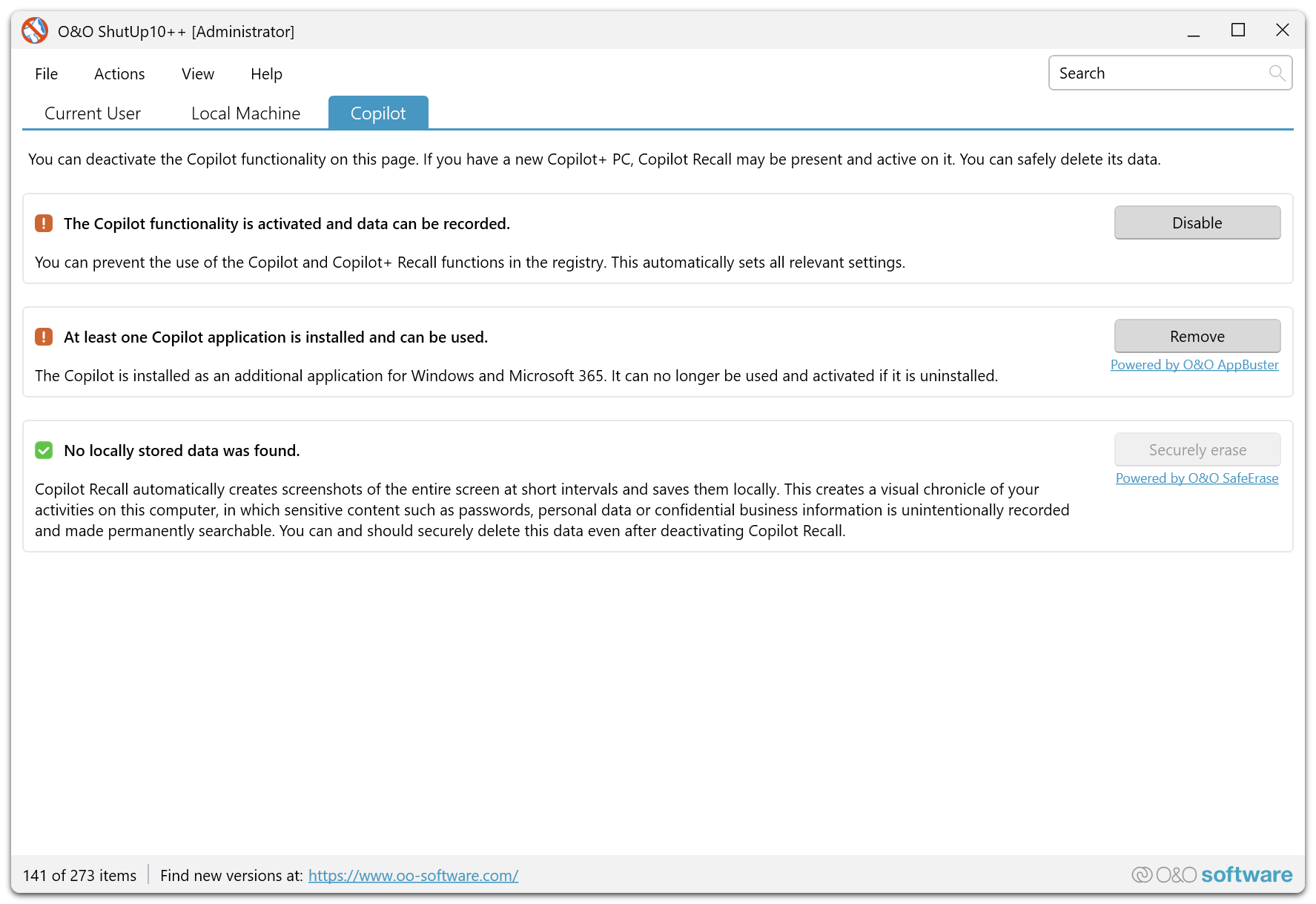
Disable Windows Copilot, Recall, and AI-powered features in Paint and Office applications. The latest version (2.2.1024) adds dedicated toggles for these newer Windows AI integrations so you can opt out entirely.
Cortana & Voice Control
Turn off Cortana, online speech recognition, inking and typing personalization, and voice activation features. Prevent Windows from listening for wake words or sending voice samples to cloud servers for processing.
Edge Browser Privacy
Disable the Edge welcome screen, AI-powered design suggestions, the built-in shopping assistant, and browser diagnostic data sharing. Keep Edge functional while stripping out the data-collecting features Microsoft adds with each update.
Background App & Permissions Control
Restrict which apps run in the background and control permissions for your camera, microphone, location services, and notifications. Reduce battery drain on laptops while keeping Windows from granting app access you never approved.
Bing & Web Search Disable
Turn off Bing web results inside Windows Search so that typing in the Start menu only searches your local files and apps. This speeds up search and prevents your queries from being sent to Microsoft servers.
OneDrive & Cloud Integration
Reduce OneDrive integration, suppress cloud-sync prompts, and disable notifications urging you to back up to Microsoft’s cloud. Keep OneDrive available for manual use without the constant nudging and background syncing.
Backup & Restore Safety
Create a Windows system restore point before making any changes, then export your configuration to a file. If something goes wrong or a Windows update resets your preferences, import your saved settings and reapply them in seconds.
System Requirements
O&O ShutUp10++ is extremely lightweight it runs on virtually any Windows 10 or 11 machine
| Component | Minimum | Recommended |
|---|---|---|
| Operating System | Windows 10 (32-bit or 64-bit) | Windows 11 (64-bit, latest update) |
| Processor (CPU) | Any x86, x64, or ARM64 processor | 1 GHz or faster, dual-core |
| RAM | 512 MB available | 2 GB or more |
| Disk Space | ~50 MB free (portable, no install) | 100 MB free (for restore points) |
| GPU | Not required | Not required |
| Display | 800 x 600 resolution | 1920 x 1080 or higher |
| Internet | Not required to run | Optional (for update checks) |
| Permissions | Administrator rights required | Administrator rights required |
Download O&O ShutUp10++ v2.2.1024
Free for personal, commercial, and educational use no registration, no hidden costs
You are downloading OOSU10.exe a standalone portable executable. No installer, no setup wizard. Right-click the file and select “Run as administrator” to launch. MD5 checksum: 08fdce16c9c77b238045a2101ee31e13.
Screenshots
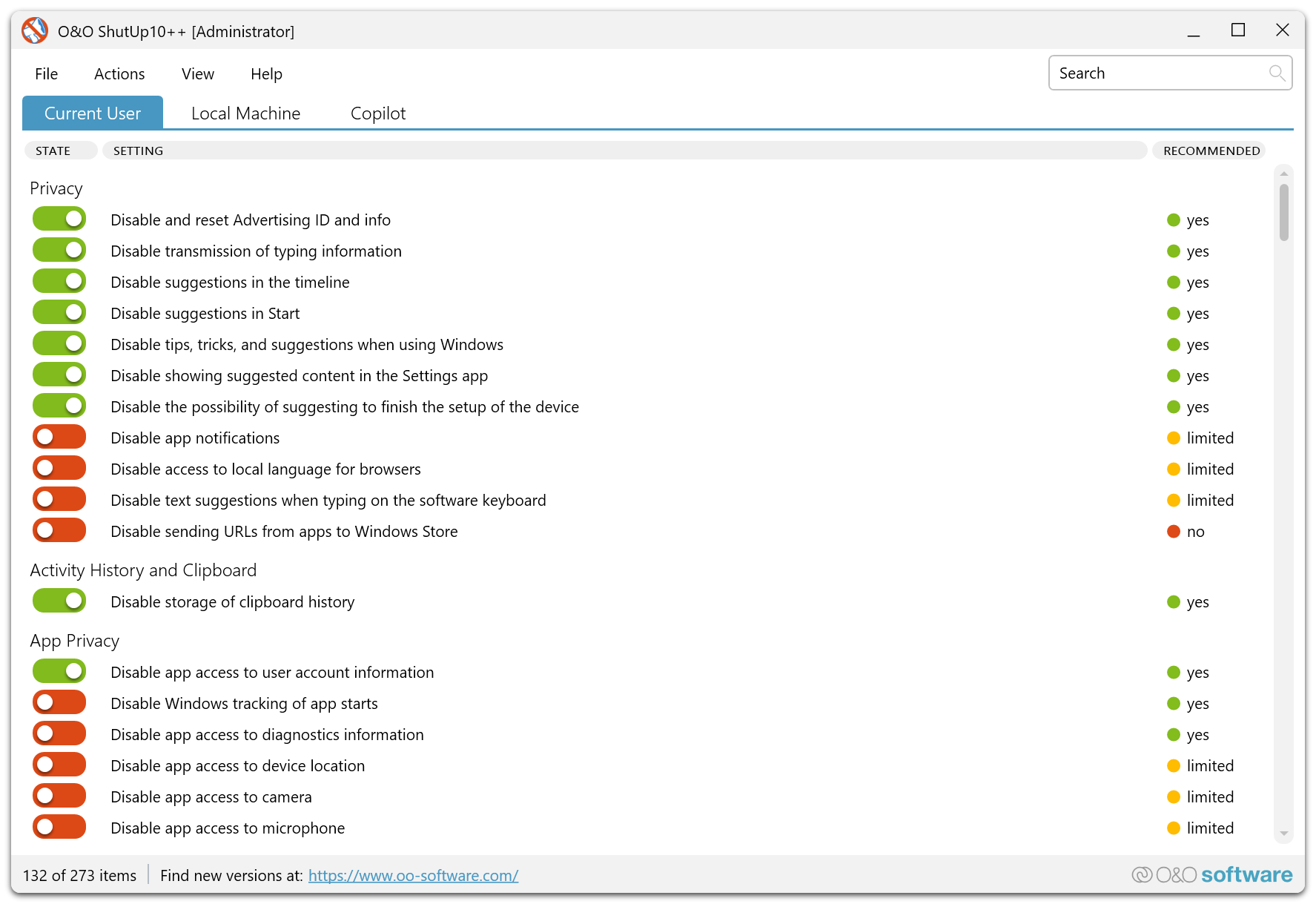
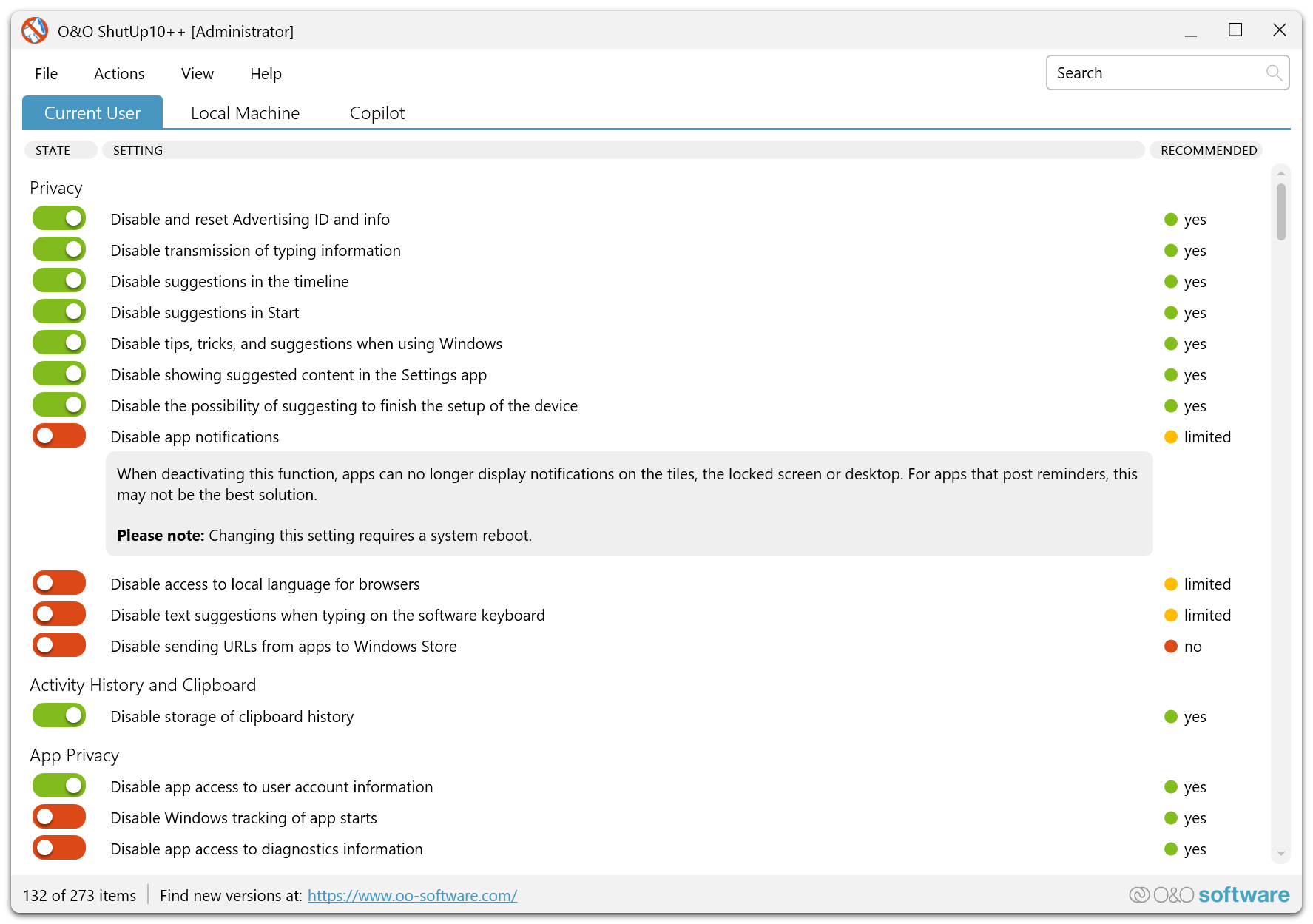
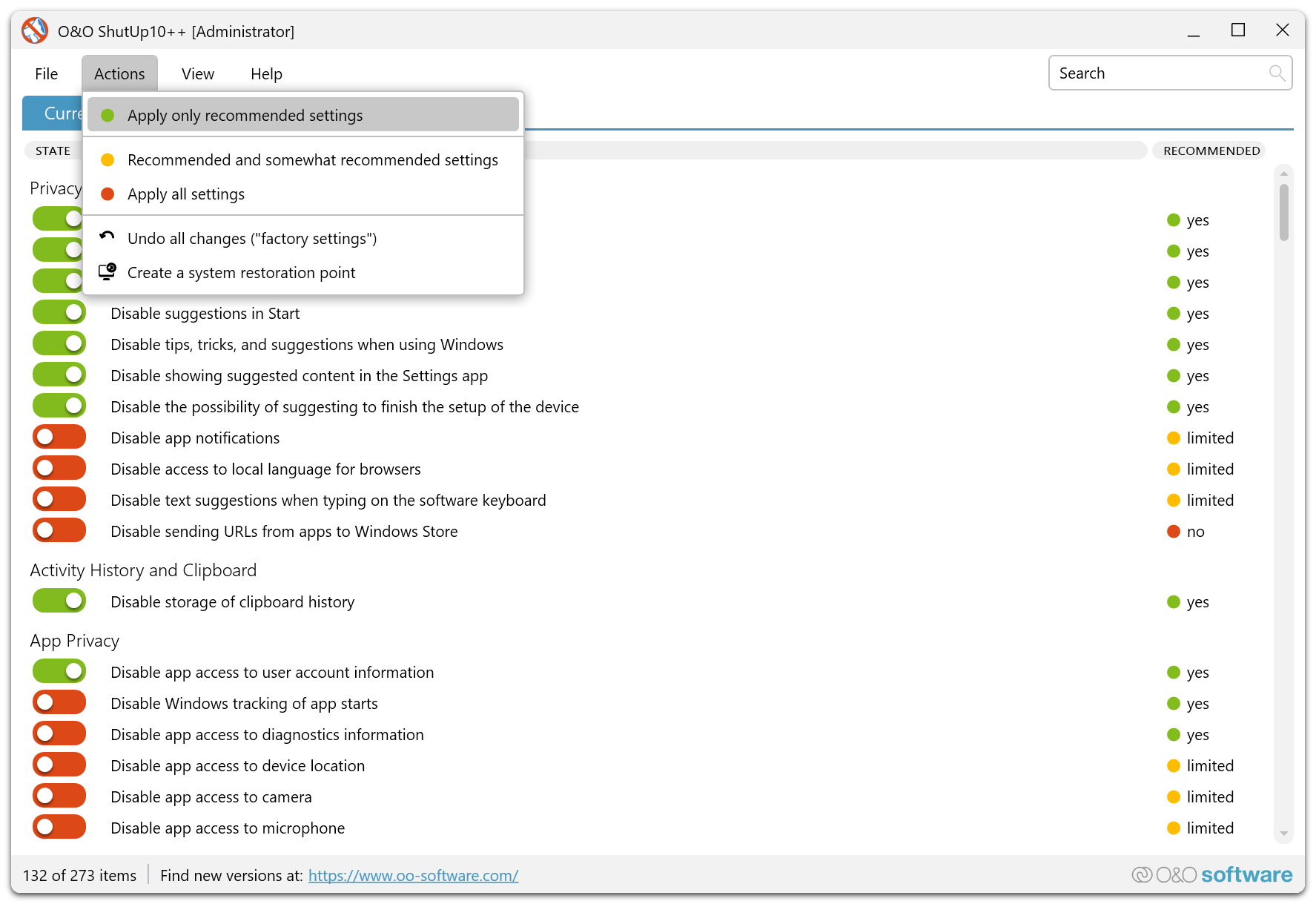
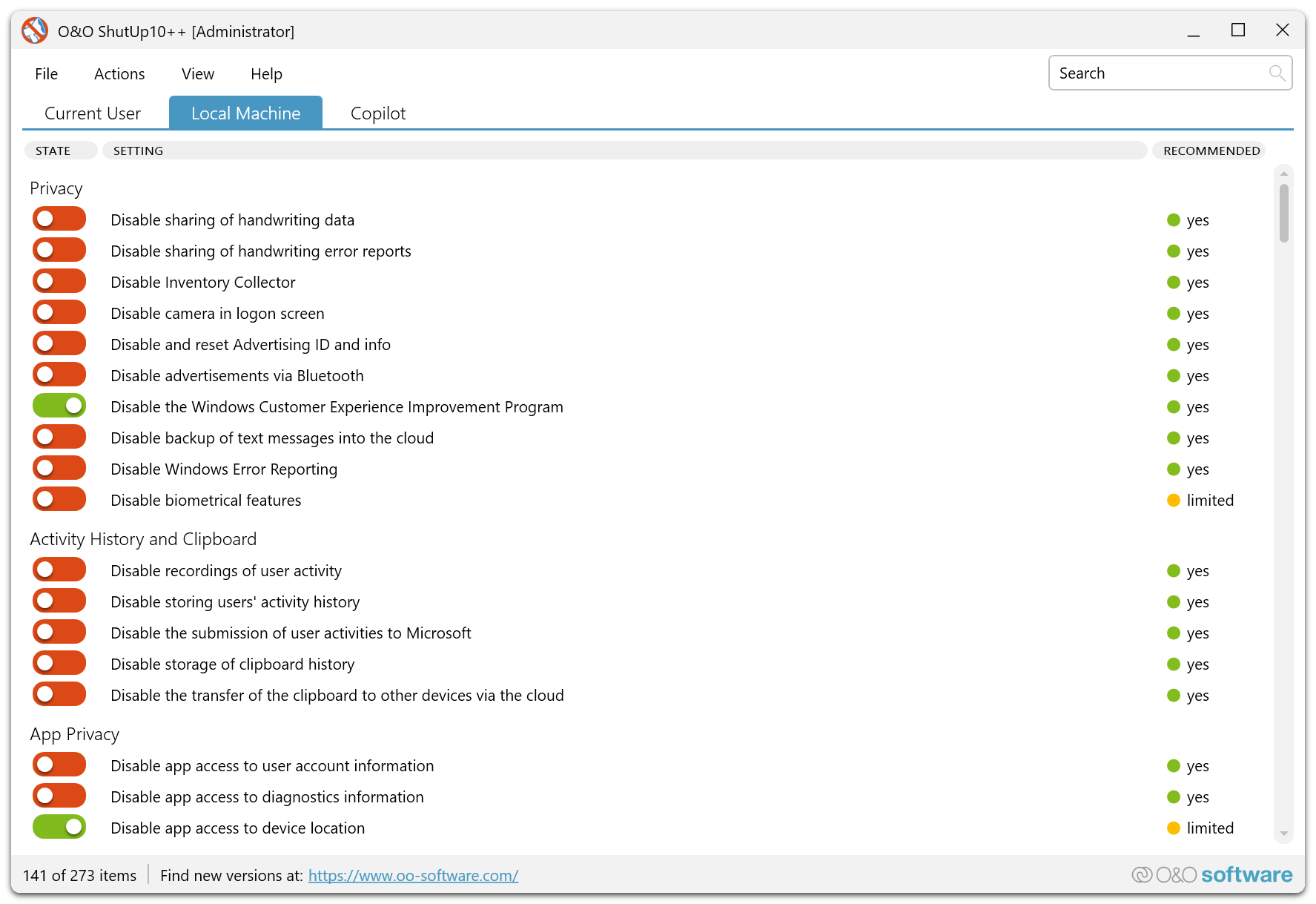
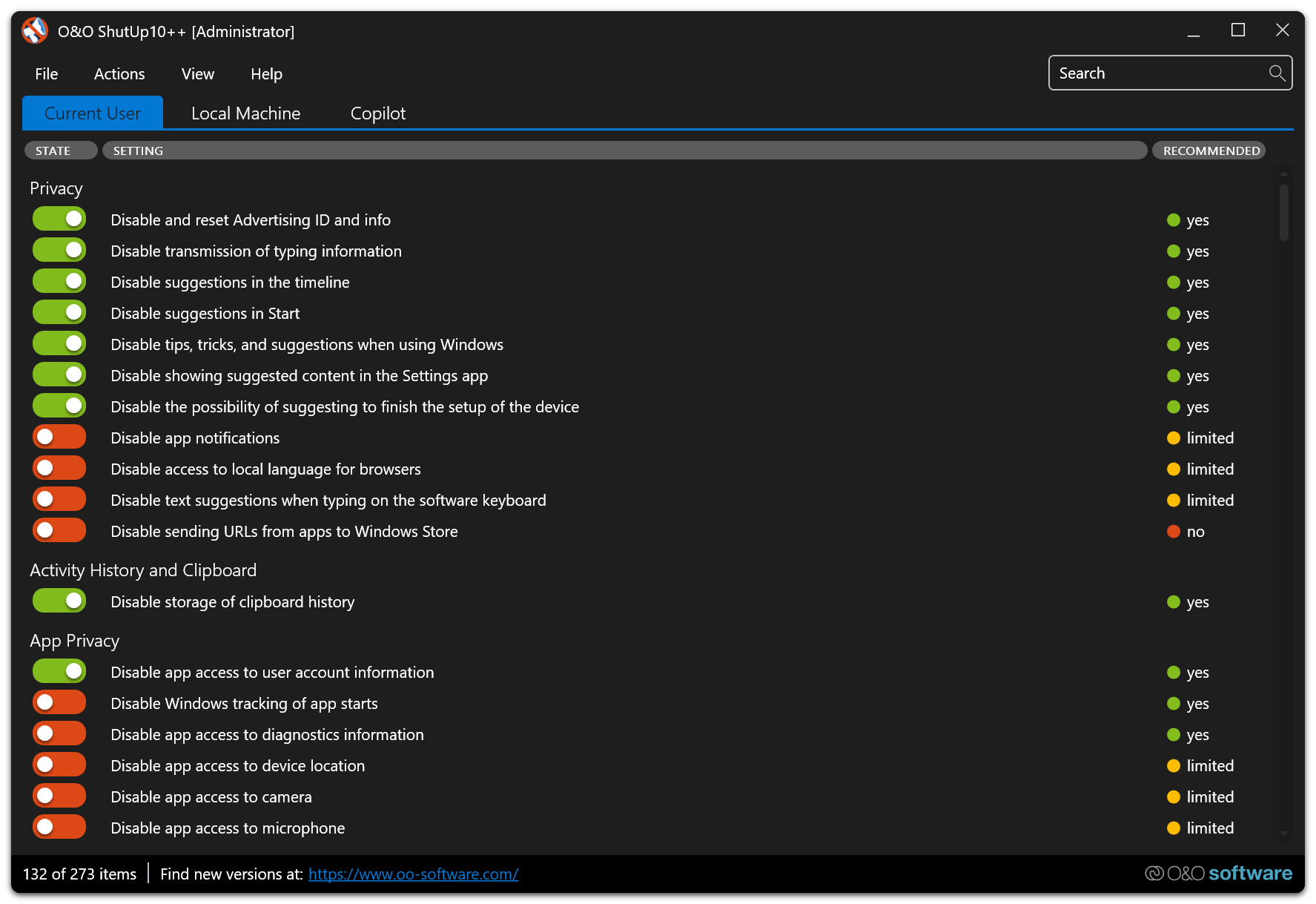
See how O&O ShutUp10++ looks in action on Windows 10 and Windows 11
How to Install & Use O&O ShutUp10++
A complete step-by-step guide from downloading the application to configuring your first privacy profile
Downloading O&O ShutUp10++
- Visit our download section at the top of this page and click the Download ShutUp10++ button for your architecture (64-bit, 32-bit, or ARM64).
- Your browser will download a single file called OOSU10.exe (approximately 76.1 MB). This is the complete application there is no installer, no .msi, no setup wizard.
- Save the file to a convenient location you can find later. Your Desktop or a dedicated “Tools” folder both work well. Since ShutUp10++ is portable, you can also save it directly to a USB drive if you plan to use it on multiple machines.
Launching the Application
- Locate the downloaded OOSU10.exe file in your file explorer.
- Right-click the file and select “Run as administrator”. Administrator privileges are required because ShutUp10++ needs to read and modify system-level privacy settings, registry entries, and Group Policy configurations.
- If Windows User Account Control (UAC) prompts you, click Yes to allow the application to run with elevated permissions.
- The application opens immediately no installation process, no license key entry, no account registration. You will see the main dashboard with a list of all privacy settings and their current status.
Creating a System Restore Point
- On your first launch, ShutUp10++ will ask if you want to create a system restore point. Select Yes this is strongly recommended.
- The restore point captures your current Windows configuration so you can roll back all changes if anything does not work as expected.
- Wait for the restore point to finish (this usually takes 30 seconds to 2 minutes depending on your system). A confirmation message will appear when it is complete.
Configuring Privacy Settings
- The main dashboard displays all available privacy settings organized by category (Telemetry, Cortana, Location, Camera, etc.). Each setting shows a toggle switch and a color indicator:
- Green Safe to disable. No impact on normal Windows functionality.
- Yellow Use caution. May affect specific features you use.
- Red May break certain Windows functions. Only for advanced users.
- For beginners, go to Actions > Apply only recommended settings. This applies all green-tagged changes automatically a safe starting point that disables the most common tracking features without breaking anything.
- For advanced users, browse each category individually and toggle specific settings based on your needs. Click any setting name to read a detailed explanation of what it controls and what happens when you disable it.
- After applying your changes, some settings take effect immediately while others require a Windows restart. The application will notify you if a restart is needed.
After Windows Updates
- Major Windows updates (especially feature updates like 24H2) can reset some of your privacy settings back to Microsoft defaults. This is expected behavior from Microsoft.
- After any significant Windows update, re-run ShutUp10++ from the download section on this page (or from where you saved the .exe) to check which settings were reverted.
- You can export your preferred configuration via Actions > Export settings and save it as a file. After an update, use Actions > Import settings to reapply your entire privacy profile in one step.
Frequently Asked Questions
Answers to the most common questions about O&O ShutUp10++
Is O&O ShutUp10++ safe to use?
Yes, O&O ShutUp10++ is safe. It is developed by O&O Software GmbH, a Berlin-based company that has been a Microsoft Certified Partner since 2003. The executable has been verified clean against 70+ antivirus engines, and the application is used by organizations including NATO-affiliated agencies and 76% of DAX-listed companies. ShutUp10++ does not modify core Windows system files it only changes privacy-related settings and registry entries. You can also create a system restore point before applying any changes, giving you a full rollback option if needed.
Is O&O ShutUp10++ really free?
Yes, it is completely free. O&O ShutUp10++ is freeware licensed for personal, commercial, and educational use at no cost. There is no trial period, no feature-locked premium version, no account registration, and no in-app purchases. O&O Software provides it as a free tool and generates revenue from their other paid products like O&O DiskImage and O&O Defrag.
Does O&O ShutUp10 work on Windows 11?
Yes, O&O ShutUp10++ fully supports Windows 11 including the latest 24H2 update. The “++” in the name was added specifically to reflect Windows 11 support. Version 2.2.1024 includes dedicated toggles for Windows 11 features like Copilot, Recall, and other AI integrations. The application auto-detects your Windows version and only shows settings relevant to your operating system.
Will ShutUp10 break Windows Update?
No, the recommended (green) settings will not break Windows Update. ShutUp10++ color-codes every toggle so you know the impact level. Green settings are safe and do not affect Windows Update at all. Some yellow and red settings can restrict update behavior for example, disabling “delivery optimization” stops Windows from sharing update files peer-to-peer. If you stick to the recommended settings, Windows Update will continue working normally. If you accidentally break something, use your system restore point to roll back.
Does ShutUp10 slow down my computer?
No in fact, many users report a slight performance improvement after disabling unnecessary background telemetry, diagnostic services, and cloud sync features. ShutUp10++ itself does not run in the background. It only runs when you open the .exe, applies the changes you select, and then you close it. There is no resident process, no system tray icon, and no background service consuming resources.
Do I need to run ShutUp10 after every Windows update?
It depends on the update type. Small monthly security patches usually do not reset your privacy settings. However, major feature updates (like going from Windows 11 23H2 to 24H2) often revert privacy settings back to Microsoft defaults. After any major update, re-run ShutUp10++ to check which settings were reverted. Export your settings beforehand so you can re-import and reapply them in one step after the update finishes.
Can I undo changes made by ShutUp10?
Yes, every change is fully reversible. You have three options: toggle individual settings back to their original state within the app, use the “Undo all changes” option in the Actions menu, or restore from the system restore point you created before applying changes. This makes ShutUp10++ safe to experiment with you can always return to your previous configuration.
Does ShutUp10 need to stay running in the background?
No. O&O ShutUp10++ is not a background service or monitoring tool. You open the portable .exe, review and apply your settings, and then close it. The privacy changes persist in your Windows configuration until you change them again or a Windows update resets them. There is no need to keep the application running, add it to startup, or schedule it as a task.
Will ShutUp10 disable Cortana and Copilot?
Yes, ShutUp10++ includes dedicated toggles to disable both Cortana and Windows Copilot. For Cortana, you can turn off voice activation, online speech recognition, and typing personalization. For Copilot (new in version 2.2), you can disable the Copilot sidebar, Recall, and AI features in Paint and Office apps. Each feature has its own toggle, so you can disable Copilot while keeping Cortana or vice versa.
Does ShutUp10 work with antivirus software?
Yes, ShutUp10++ is compatible with all major antivirus programs including Windows Defender, Malwarebytes, Bitdefender, Norton, and Kaspersky. The application modifies privacy-related settings and registry entries, not security configurations. Occasionally, an overly aggressive antivirus may flag the .exe as a “potentially unwanted program” (PUP) because it modifies system settings this is a false positive. You can safely whitelist it if this occurs.
Can I use ShutUp10 on multiple computers?
Yes. Since ShutUp10++ is portable and free with no license restrictions, you can copy the .exe to a USB drive and run it on as many Windows PCs as you need. For IT administrators managing multiple machines, you can export a configuration from one computer and import it on others to apply a standardized privacy profile across your entire fleet.
What is the difference between ShutUp10 and ShutUp10++?
ShutUp10++ is the current, actively maintained version that supports both Windows 10 and Windows 11. The original “ShutUp10” (without the “++”) was the earlier version that only supported Windows 10. O&O rebranded to ShutUp10++ when they added Windows 11 support and new feature categories like Copilot and AI controls. If you download from the official O&O website or from our download section, you automatically get ShutUp10++ the latest version.
O&O ShutUp10 vs W10Privacy which is better?
Both are capable Windows privacy tools, but they differ in approach. ShutUp10++ is simpler and more visual it uses color-coded recommendations (green/yellow/red) that make it accessible to beginners. W10Privacy offers more granular, advanced controls and can feel overwhelming if you are not familiar with Windows internals. ShutUp10++ is backed by O&O Software (a Microsoft Certified Partner with 25+ years of history), while W10Privacy is an independent project. For most users, ShutUp10++ is the better starting point because of its safety-first design and official corporate backing.
How do I completely remove ShutUp10?
Since O&O ShutUp10++ is a portable application, there is nothing to uninstall. Simply delete the OOSU10.exe file from wherever you saved it. The program does not create any folders in Program Files, does not add registry keys for itself, and does not install any background services. Your privacy settings will remain as you configured them even after deleting the .exe. If you want to revert your privacy changes before removing the file, open ShutUp10++ one last time and select “Undo all changes” from the Actions menu.